
Update the Baseline
Update the baseline to bring the latest organization data into your scenarios.
Overview
As you create scenarios in your project, your organization continues to change; people join, leave, change managers, or move into new positions. Updating the baseline lets you pull that latest real-world data into your scenarios so you're always comparing your planned changes against the most current picture of your organization, rather than an outdated snapshot.
When you update the baseline, any conflicts between your scenario changes and the new data are surfaced so you can decide how to resolve them before the update is applied.
The baseline
When you create a project, the baseline is set as a snapshot of your data at that point in time. Every scenario created from that project starts from this same baseline, and all changes you make within a scenario are compared against it.
Over time, your real organization data changes. For example, headcount shifts, employees leave, or reporting lines are updated. The baseline in your project doesn't update automatically, so it can fall out of sync with reality. Updating the baseline brings in this newer data so your scenario reflects what's actually true today.
Example:
-
If your baseline shows 185 positions in the organization, all scenario changes are compared against that number. If an employee leaves and headcount drops to 184 in reality, updating the baseline pulls in that new number for your scenario changes to be compared against.
-
If you change an employee's manager in your scenario, but that same change has since happened in real life, your scenario change will show up as a difference from the baseline until you update it. Once you update the baseline, that change is already reflected in the real data, so it's no longer shown as a scenario change.
Updating the baseline changes what your scenario is compared against, which means it can also introduce conflicts. Conflicts are cases where a change you made in your scenario doesn't align with the new baseline data. For example, if you set an employee's manager to someone who has since left the organization, this would appear as a conflict when you update the baseline. You can resolve any conflicts such as these as part of the update process.
Update the baseline
Note: Once you apply a baseline update, this cannot be undone. You can click Cancel at any point to discard all changes and keep your existing baseline.
- In a scenario, click Baseline.

Result: The Update baseline dialog appears, which shows the date you're updating the baseline data to, and whether there are any conflicts to resolve.
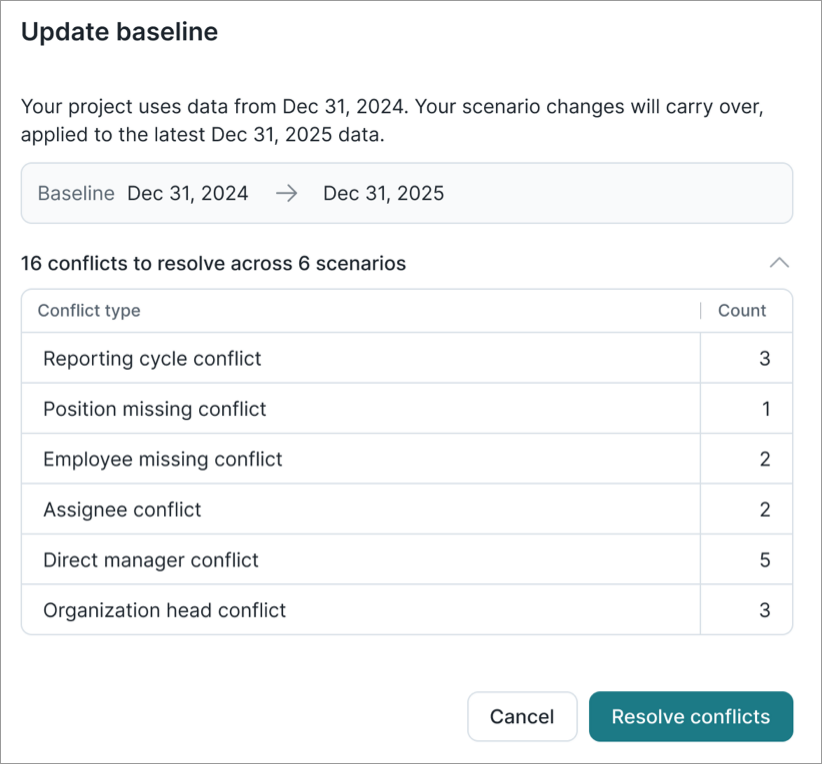
-
In the Update baseline dialog, do one of the following:
To
Do this
Review changes (no conflicts)
- Click Review changes.
Resolve conflicts (conflicts detected)
- Click Resolve conflicts.
- Review each conflict and choose a resolution. You can preview each resolution before committing to it. Each conflict is shown with three columns:
- Affected scenario: The scenario containing the conflict.
- Your scenario change: The conflicting change.
- Resolution: The options you can choose from to resolve the conflict.
Note: When a conflict refers to a position or employee as "missing," it doesn't always mean the position was removed or the person left the company. It can also mean your security access has since changed so that the employee or position data is no longer visible to you.
-
Once all conflicts are resolved, click View summary to see which changes were kept, replaced, or added.
- Review the list of changes. You can preview each one; this is a read-only view.
- Click Apply baseline update.
Result: The latest data is now reflected in your scenario. The scenario's Changes tab refreshes to reflect the update. Any kept changes remain, and any changes you chose to discard during conflict resolution are removed.